Embention Veronte 1x Integration Guide
ULSDC-PBIG161026-VR · version 1.0.2 · issued October 20, 2026
The numbered PDF is the controlled copy: download it from the portal.


Embention, Veronte and their logos are trademarks of Embention Sistemas Inteligentes S.A., used with its permission.
Introduction
Purpose
This guide describes how to connect a UAVLAS precision landing system to an Embention Veronte Autopilot 1x over CAN, configure the receiver and the autopilot in 1x PDI Builder, verify the link and set up precision landing.
Intended Audience
Integrators setting up precision landing on multicopters and helicopters with the Embention Veronte Autopilot 1x.
Applicability
This guide applies to UAVLAS receivers that send the Blitz Position in TX frame message over CAN (ULS-XCopter-G2). Vertical take-off and landing vehicles are covered; fixed-wing recovery (ULS-OnNet) is not. Product-specific installation, pinouts and wiring are in each product’s Operation Manual and Interface Control Document. Veronte Autopilot 1x configuration is described for 1x PDI Builder; see the Embention manuals for details of each panel.
Integration
Integration Overview
The Veronte Autopilot 1x does not use MAVLink for precision landing. The UAVLAS receiver is connected to a 1x CAN bus and sends the position of the vehicle relative to the transmitter as Blitz messages (ULS-DeCoNet). The 1x receives them as a CAN Custom Message, stores the values in user variables and uses them in its navigation and landing guidance.
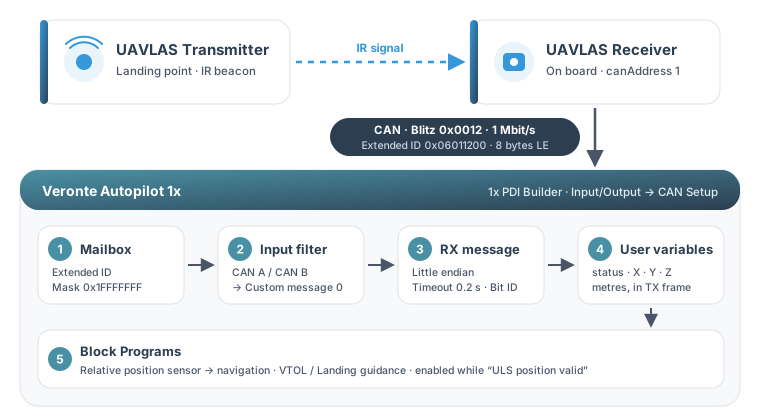
Figure: Integration Overview: from the Transmitter to Veronte Landing Guidance
Preparing for Integration
- Download the latest version of ULS-Tools. Connect all UAVLAS devices to a PC and update their firmware before proceeding.
- Install the transmitter and the receiver. Product installation details are in the Interface Control Document and Operation Manual of your product.
- Wire the receiver to a CAN bus of the Veronte Autopilot 1x as described in Wiring below.
- Configure the transmitter in ULS-Tools.
- Configure the receiver in ULS-Tools as described below.
Wiring
The receiver is connected to the CAN A (or CAN B) bus of the 68-pin connector of the Veronte Autopilot 1x with a twisted pair and a common ground. The receiver is powered from the vehicle 5 V supply.
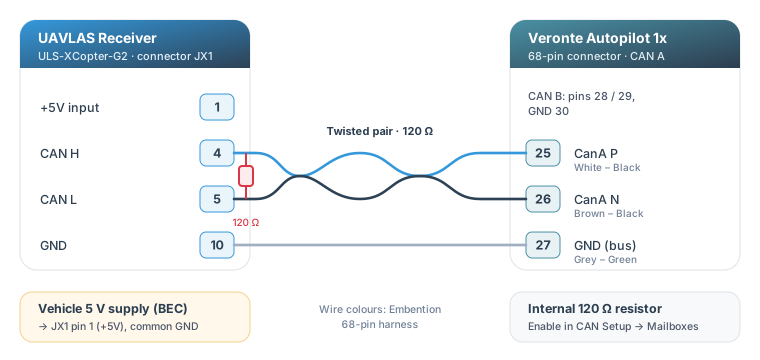
Figure: Receiver to Veronte Autopilot 1x CAN Wiring
| Receiver JX1 pin | Signal | Veronte 1x pin (CAN A) | Veronte 1x pin (CAN B) | Veronte harness wire colour |
|---|---|---|---|---|
| 4 | CAN H | 25 — CanA P | 28 — CANB_P | White – Black (25) / Yellow – Green (28) |
| 5 | CAN L | 26 — CanA N | 29 — CANB_N | Brown – Black (26) / Pink – Green (29) |
| 10 | GND | 27 — GND (buses) | 30 — GND (buses) | Grey – Green (27) / Yellow – Pink (30) |
| 1 | +5V input | — | — | Vehicle 5 V supply (BEC) |
Table: Receiver to Veronte Autopilot 1x Wiring The receiver pinout is that of the ULS-XCopter-G2 receiver connector JX1 (see the ULS-XCopter-G2 Interface Control Document). The Veronte 1x pins and harness colours are taken from the Veronte Autopilot 1x Hardware Manual (UM.305): CAN A and CAN B support up to 1 Mbit/s and are protected against ESD.
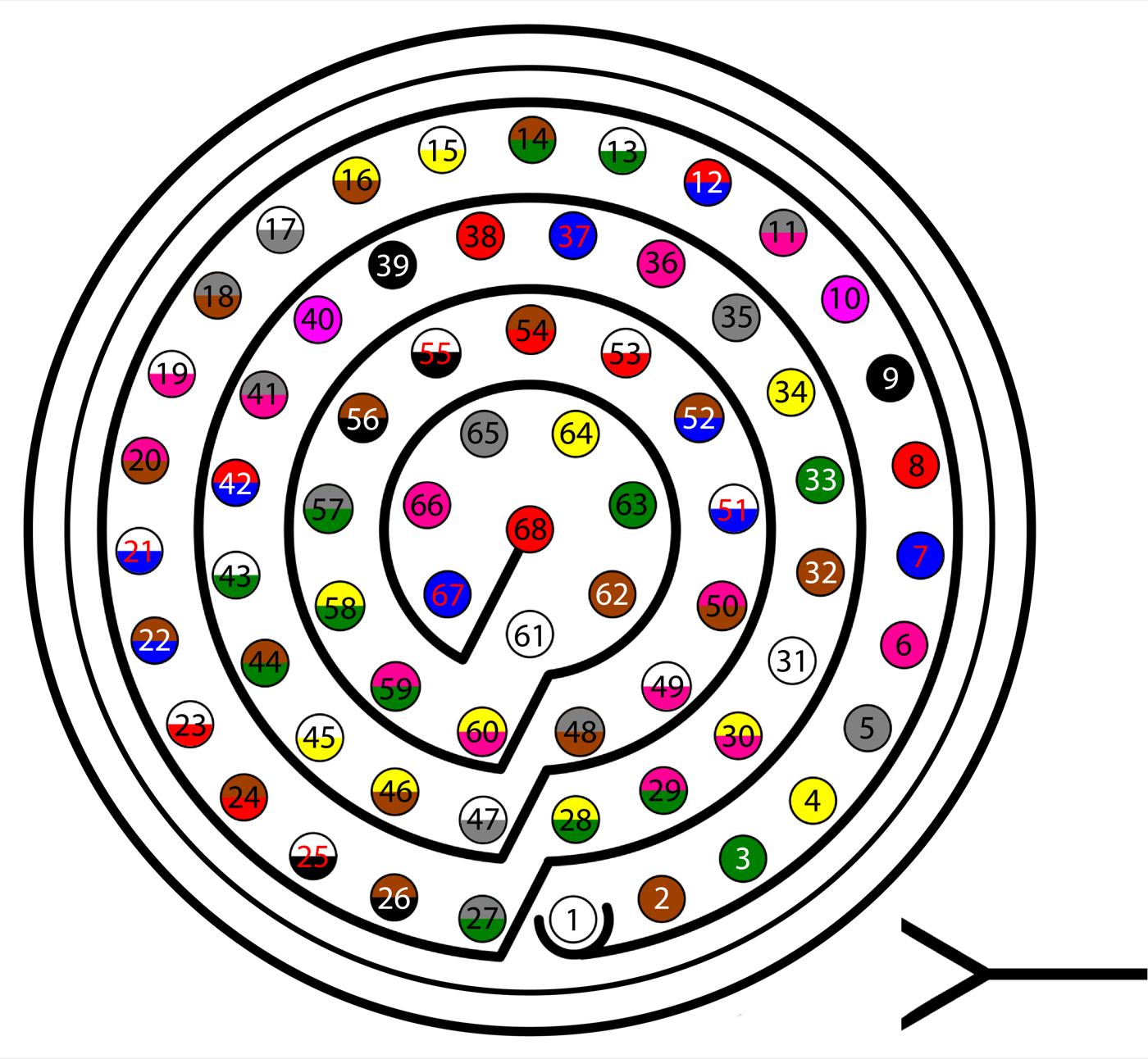
Figure: Veronte Autopilot 1x 68-pin Connector, Frontal View (Source: Embention UM.305)
- Terminate the CAN bus with 120 Ω at both ends. The Veronte 1x provides one internal 120 Ω resistor, enabled in CAN Setup → Mailboxes; fit a 120 Ω resistor between CAN H and CAN L at the receiver end of the bus.
- Pin numbering and harness colours can differ between Veronte 1x hardware versions. Check them against the hardware manual for your unit before connecting: misuse of the harness can damage the autopilot.
Receiver Configuration
Set the following parameters in the receiver configuration in ULS-Tools:
| Parameter | Value | Comment |
|---|---|---|
| canAddress | 1 | Static CAN address of the receiver, 1–63. The default 255 means “no static address”, and the receiver does not send Blitz messages to the 1x |
| canSpeed | 1000000 | CAN bit rate. Must match the Baudrate of the 1x CAN bus. Always set it explicitly |
Table: Receiver CAN Parameters for Veronte The examples in this guide use CAN address 1 and 1 Mbit/s. On a long bus, use a lower bit rate (500, 250 or 125 kbit/s) on both devices.
Blitz CAN Messages
Each Blitz message is sent in one CAN 2.0B frame with an extended (29-bit) identifier and 8 data bytes. The identifier is built from the command, the receiver CAN address and the message ID:
CAN ID = (0x06 << 24) | (canAddress << 16) | (MSG_ID low byte << 8) | (MSG_ID high byte)
| Blitz message | MSG_ID | CAN ID (address 1), hex | CAN ID (address 1), decimal |
|---|---|---|---|
| Position in TX frame | 0x0012 | 0x06011200 | 100733440 |
| Raw measurement (optional) | 0x0011 | 0x06011100 | 100733184 |
| Ground IMU (optional) | 0x0020 | 0x06012000 | 100737024 |
Table: Blitz CAN Identifiers The data bytes are little-endian. The Position in TX frame message (0x0012) has the following layout:
| Byte | Field | Type | Unit | Description |
|---|---|---|---|---|
| 0 | status | uint8 | — | Status bits (see below) |
| 1 | counter | uint8 | — | Measurement counter |
| 2–3 | posX | int16 | cm | Horizontal offset of the receiver from the transmitter, X axis |
| 4–5 | posY | int16 | cm | Horizontal offset of the receiver from the transmitter, Y axis |
| 6–7 | posZ | int16 | cm | Height of the receiver above the transmitter (positive up) |
Table: Blitz 0x0012 Position in TX Frame Payload
| Bit | Flag | Description |
|---|---|---|
| 0 | RX_CARRIER_OK | IR signal detected |
| 1 | RX_SQ_OK | Signal quality OK |
| 2 | RX_POS_OK | Position estimated — use posX/posY/posZ only when this bit is set |
| 3 | RX_VEL_OK | Velocity estimated |
| 4 | RX_GU_IMU_OK | Ground unit IMU OK |
Table: Blitz Status Bits The complete message set is described in the ULS-DeCoNet Blitz Messages Specification (ULSDC-PBDS051125).
Veronte Autopilot 1x Configuration
The configuration is done in 1x PDI Builder, menu Input/Output → CAN Setup.
Mailboxes
In the Mailboxes tab, select the bus the receiver is wired to (CAN A or CAN B), set its Baudrate to the receiver canSpeed and add a mailbox for the receiver message:
| Parameter | Value | Comment |
|---|---|---|
| Mailboxes | 1 | One mailbox is enough for one message ID |
| Extended | Enabled | Blitz uses 29-bit identifiers |
| ID | 0x06011200 | Units ID: Hexadecimal (100733440 decimal) |
| Mask | 0x1FFFFFFF | Units Mask: Hexadecimal — all 29 bits must match |
| Baudrate | 1000 kbit/s | Same as the receiver canSpeed |
Table: Veronte 1x Mailbox for Blitz 0x0012
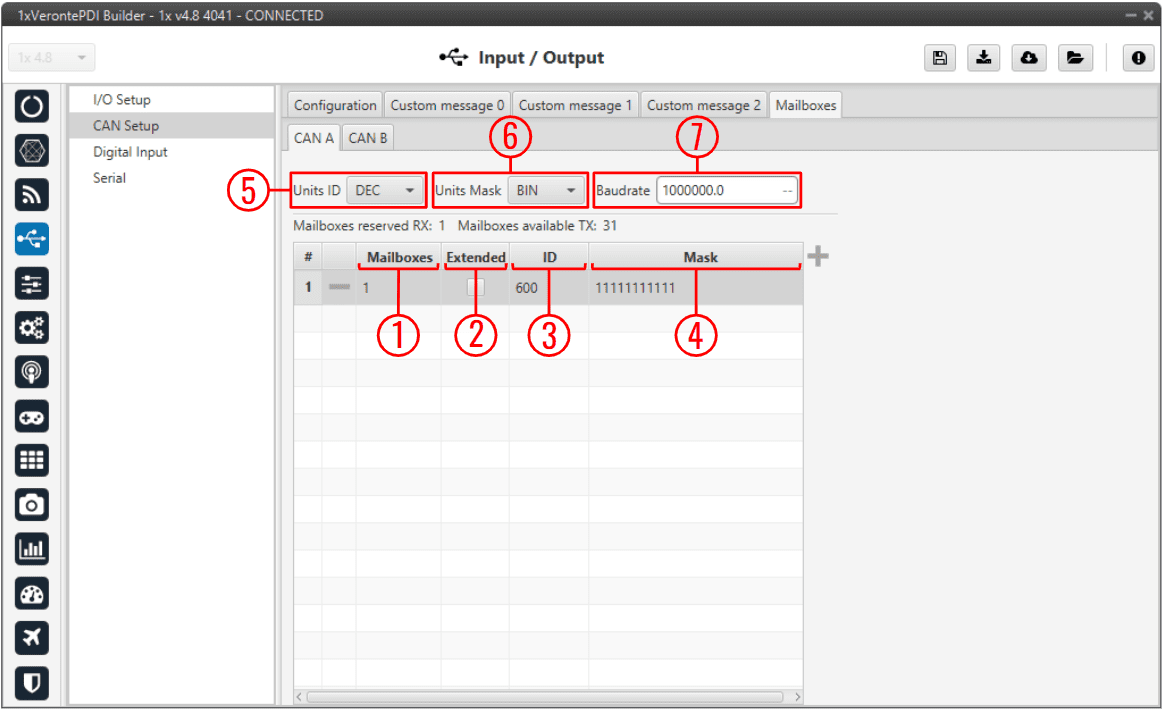
Figure: 1x PDI Builder CAN Setup, Mailboxes Panel (Source: Embention)
Input Filter and Custom Message Consumer
In the Configuration tab, add an Input filter producer and connect it to a Custom message consumer (for example Custom message 0):
| Input filter parameter | Value |
|---|---|
| Port | CAN A or CAN B (the bus the receiver is wired to) |
| Id | 100733440 (decimal) |
| Mask | 536870911 (decimal, 29 bits) |
| Filter type | Extended |
Table: Veronte 1x Input Filter for Blitz 0x0012
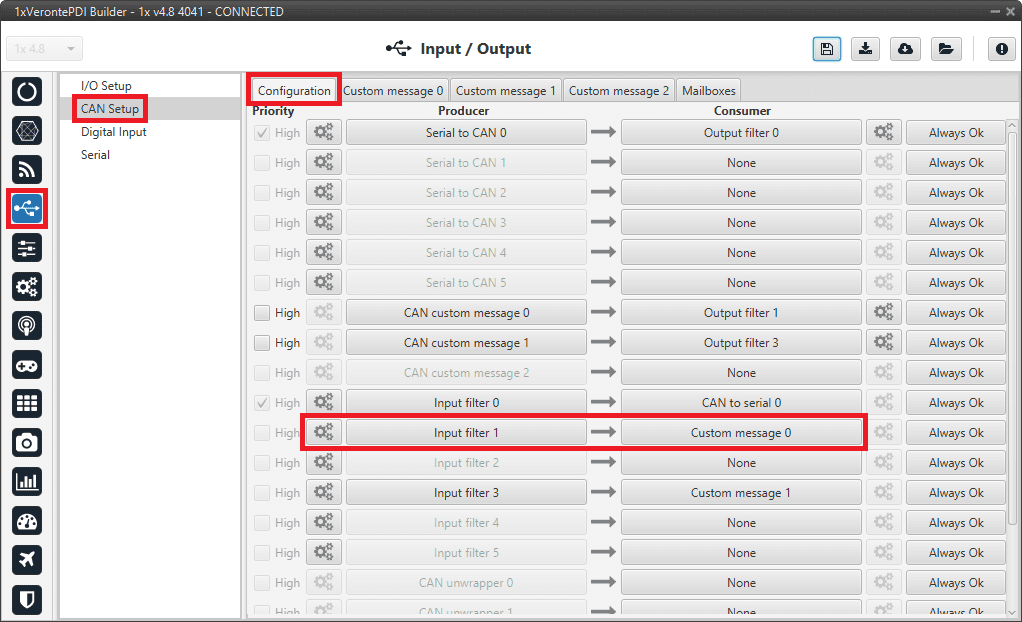
Figure: Input Filter Connected to a Custom Message Consumer (Source: Embention)
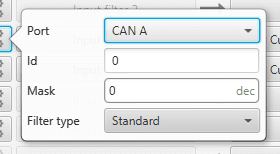
Figure: Input Filter Settings (Source: Embention)
RX Custom Message
In the Custom message tab used above, add an RX message:
| Parameter | Value | Comment |
|---|---|---|
| Can id | 100733440 | Decimal |
| Ext | Enabled | Extended identifier |
| Endianness | Little endian | |
| Time out | 0.2 s | The receiver sends position at up to 100 Hz |
| Bit ID | a free user bit, e.g. “ULS message OK” | True while the message is received |
Table: Veronte 1x RX Custom Message Settings
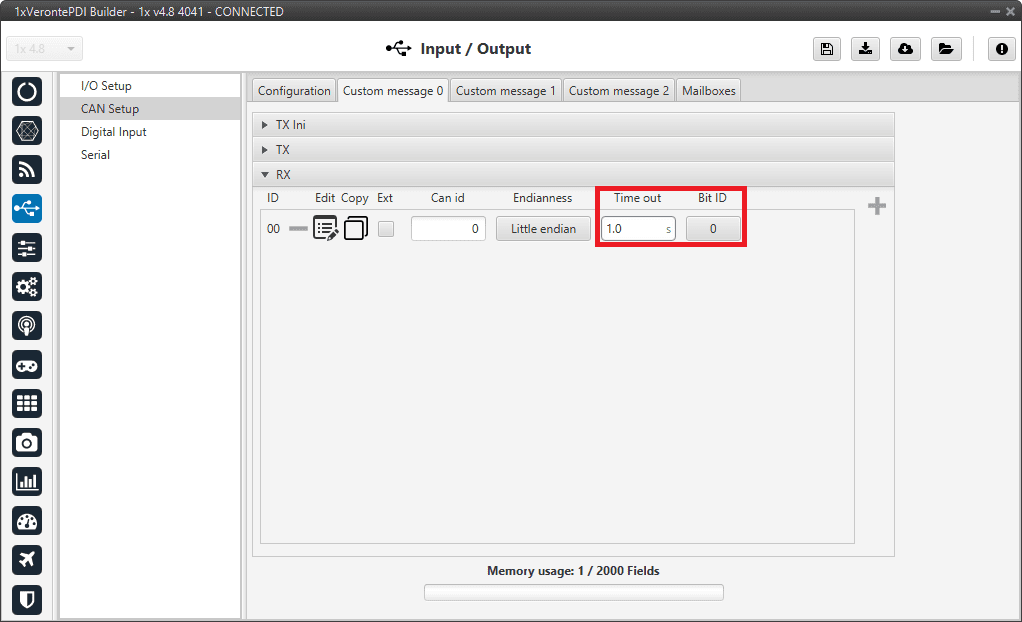
Figure: CAN Custom Message, RX Section (Source: Embention)
Create four user variables (for example ULS status, ULS X, ULS Y, ULS Z) and build the message structure with the Edit button. The order of the fields must follow the payload:
| # | Field type | Variable | Bits | Compression | Decode min / max | Encode min / max |
|---|---|---|---|---|---|---|
| 1 | Variable | ULS status (integer) | 8 | Compress, Max 255 | — | — |
| 2 | Skip | — (counter) | 8 | — | — | — |
| 3 | Variable | ULS X (real) | 16 | Compress - Bits Signed | −32768 / 32767 | −327.68 / 327.67 |
| 4 | Variable | ULS Y (real) | 16 | Compress - Bits Signed | −32768 / 32767 | −327.68 / 327.67 |
| 5 | Variable | ULS Z (real) | 16 | Compress - Bits Signed | −32768 / 32767 | −327.68 / 327.67 |
Table: Veronte 1x RX Custom Message Fields The Decode / Encode values scale the received centimetres to metres. Each Variable field is set up in the message editor:
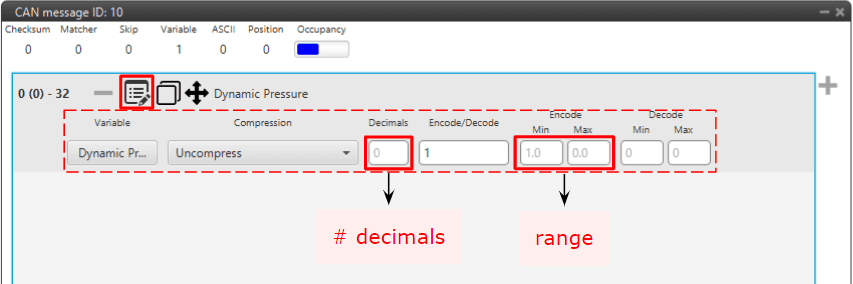
Figure: Variable Field: Compression and Encode / Decode Range (Source: Embention)
Position Valid Condition
Use the received position only when the message is being received and the receiver reports a valid position:
- Bit ID (“ULS message OK”) is true, and
- bit 2 (RX_POS_OK) of ULS status is set (in Block Programs, for example,
ULS statusbitwise AND 4 not equal to 0).
Combine both into one user bit (for example ULS position valid) and use it to enable the precision landing logic below.
Check Setup
- Power the transmitter and the vehicle. Place the vehicle (or hold the receiver) above the transmitter, inside its field of view.
- In Veronte Ops / 1x PDI Builder, add the user variables ULS status, ULS X, ULS Y, ULS Z and the bit ULS message OK to the variable list.
- Check that ULS message OK is true and that bit 2 of ULS status is set (with signal, signal quality and position OK, the value is 7 or more).
- Check that ULS Z shows the height of the receiver above the transmitter in metres.
- Move the receiver along each axis of the transmitter and note the sign of ULS X and ULS Y. Use these signs to set the axes (and, if needed, the invert option) in the navigation setup below.
Precision Landing Configuration
The received offset is a position of the vehicle relative to the landing point (the transmitter). In 1x PDI Builder it is used in Block Programs:
- Navigation — a Relative position sensor block takes the measurement relative to a base position (the landing point, for example a Moving Object for a moving platform) and gives the navigation filter an absolute position measurement. Set the base yaw input to the heading of the transmitter, the distance to mass centre to the receiver position on the vehicle, and the horizontal / vertical variances. Enable the block only while ULS position valid is true.
- Guidance — the landing is flown with the multicopter VTOL guidance (type Straight, Safe set as a relative distance below the vehicle, and an automation that stops the motors at touchdown), or with the Landing settings of the guidance block described in the 1x PDI Builder manual.
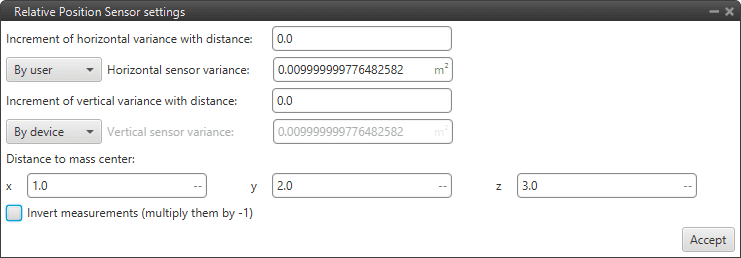
Figure: Relative Position Sensor Settings (Source: Embention)
For the exact parameters of the guidance and navigation blocks, see the 1x PDI Builder user manual (Block Programs → Guidance → Landing) or contact Embention support.
First Flights
- Start with a hover above the transmitter at 3–5 m, with the precision landing logic disabled, and compare ULS X, ULS Y, ULS Z with the vehicle position.
- Enable the relative position measurement and check that the vehicle holds its position above the transmitter.
- Only then perform the first precision landing. Tune the variances of the relative position measurement for a smooth approach.
For additional information, see the Embention Veronte documentation at https://manuals.embention.com/