# Update Firmware
> How to update the firmware of UAVLAS transmitters and receivers with ULS-Tools.
---
Site [llms.txt](/llms.txt)
---
### Firmware Update
Updating to last version of firmware can be done from the main device vew page.
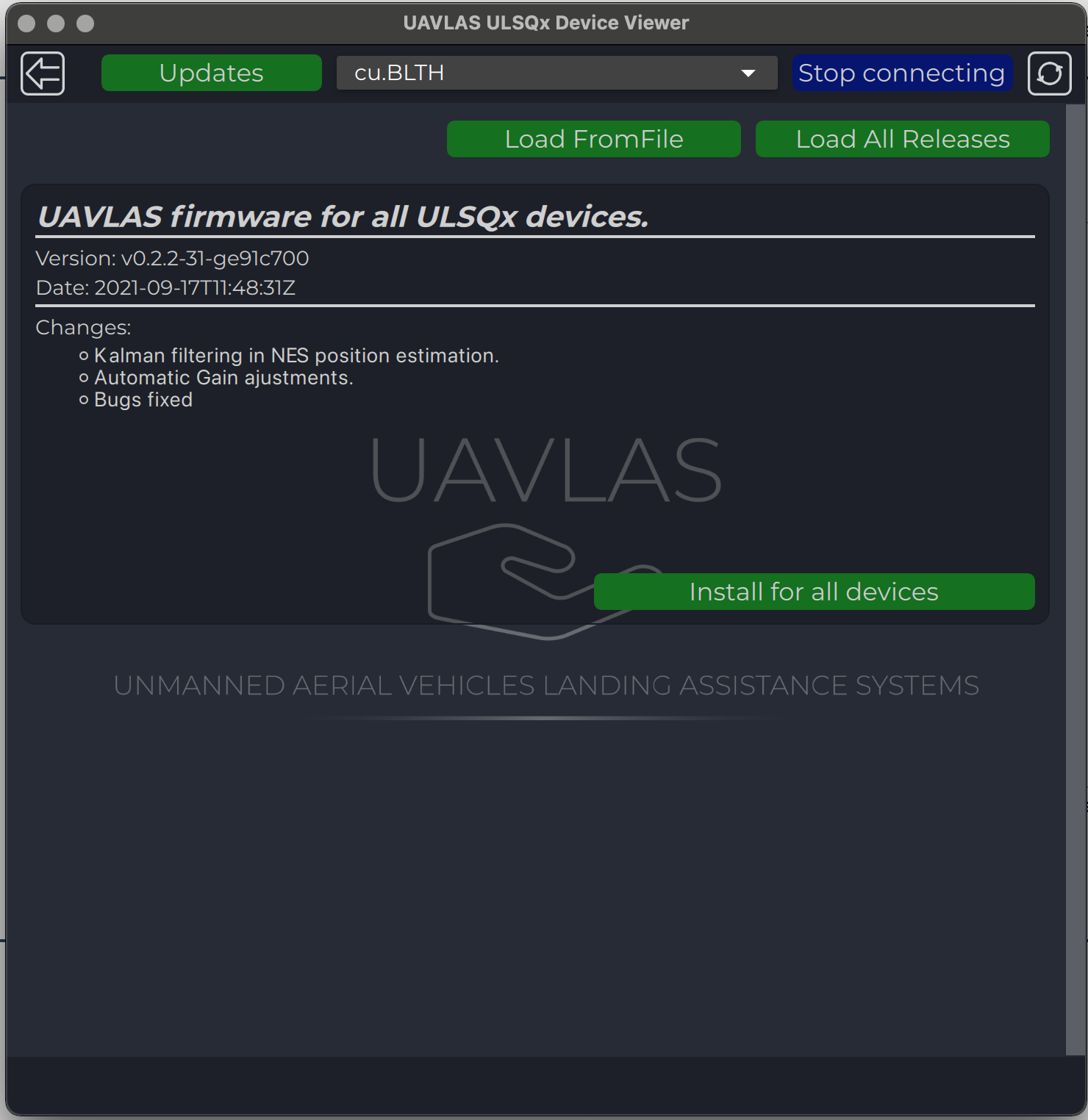
Update all devices at once or update to a specific version or from file can be done from the update page.
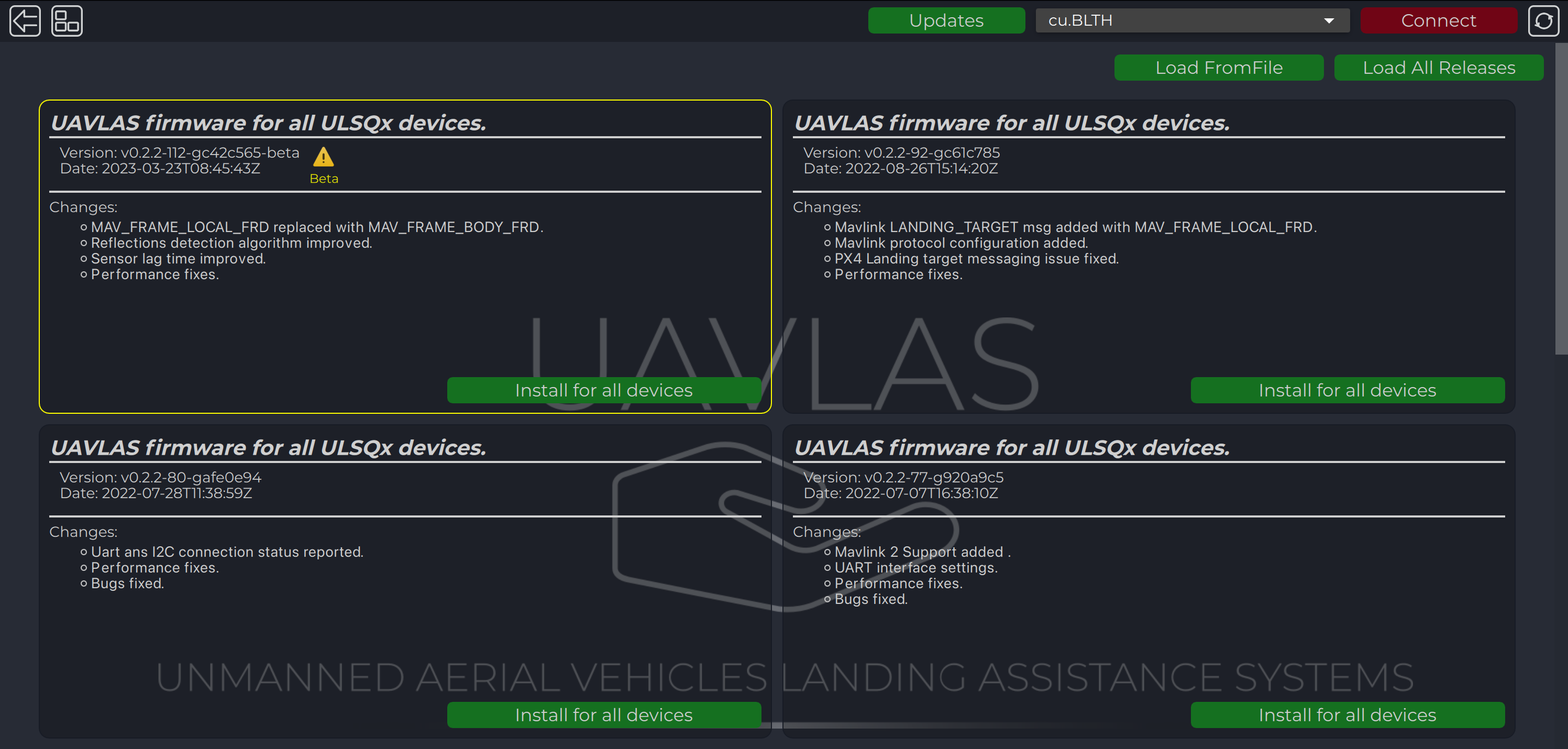
The last release appears on the page automatically, but you can load all releases or load firmware from a file using corresponding buttons.
After loading, use "Install for all devices" to update firmware.
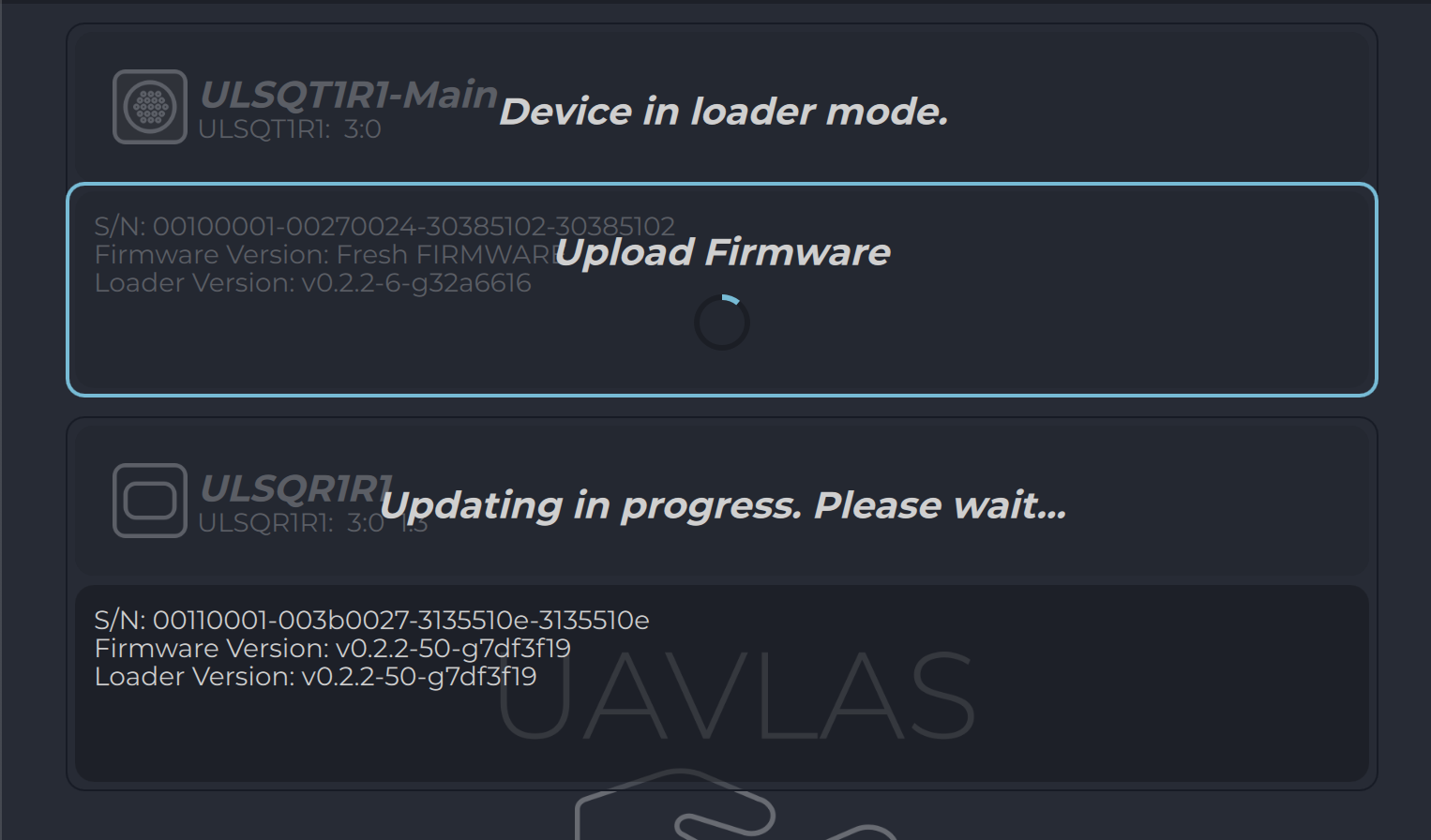
Progress of updating process are displayed on Device View Page.
---
Warning
***DO NOT DISCONNECT ANY DEVICES OR CLOSE PROGRAM UNTIL UPDATE PROCESS COMPLIED!***.
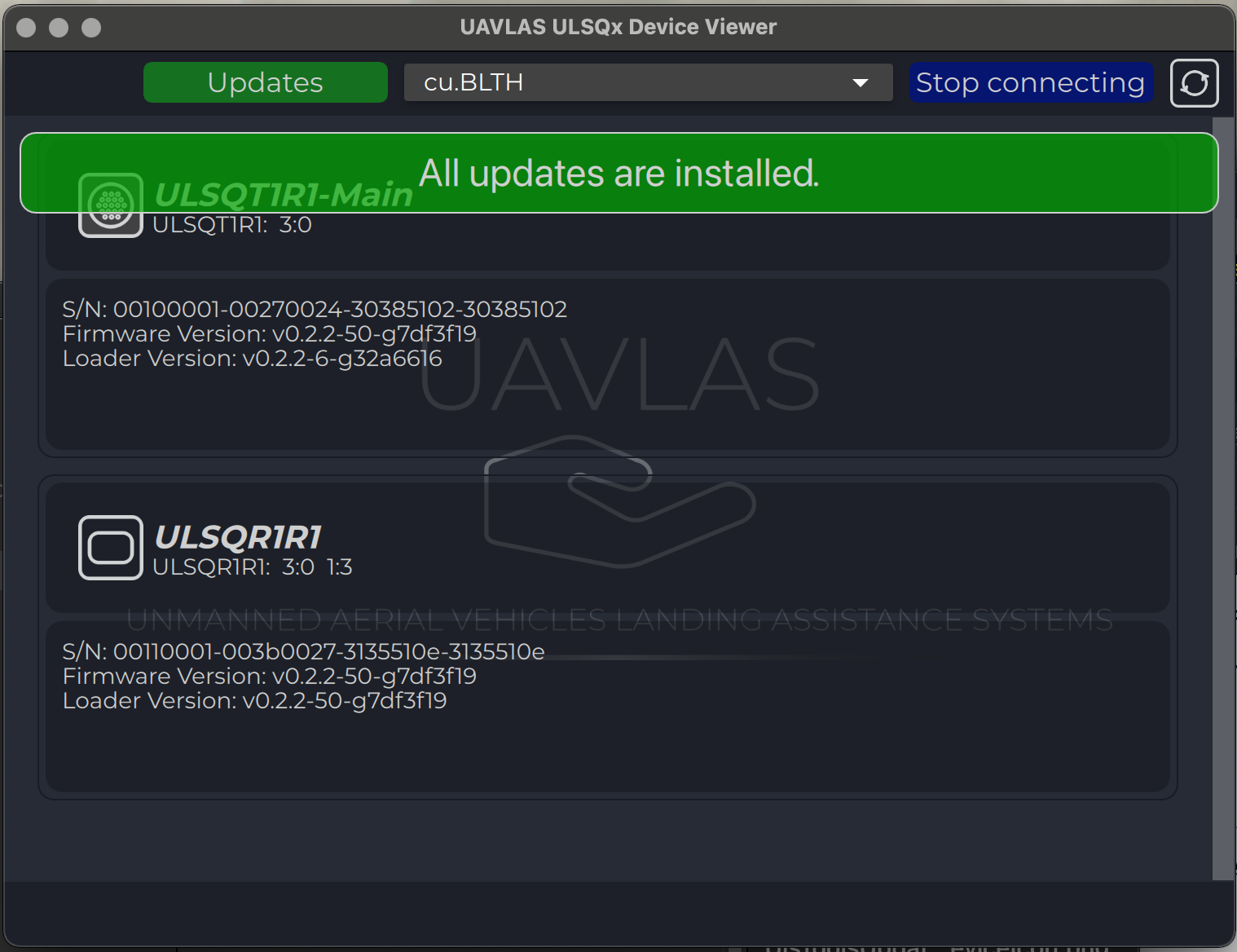
After updating you will get the corresponding message.
### Firmware Update Beta version
"Beta" releases contains builds with new features and recommended for testing purposes.
Updating to beta version of firmware can be done on the update page.
Update all devices at once or update to a specific version or from a file can be done from update page.
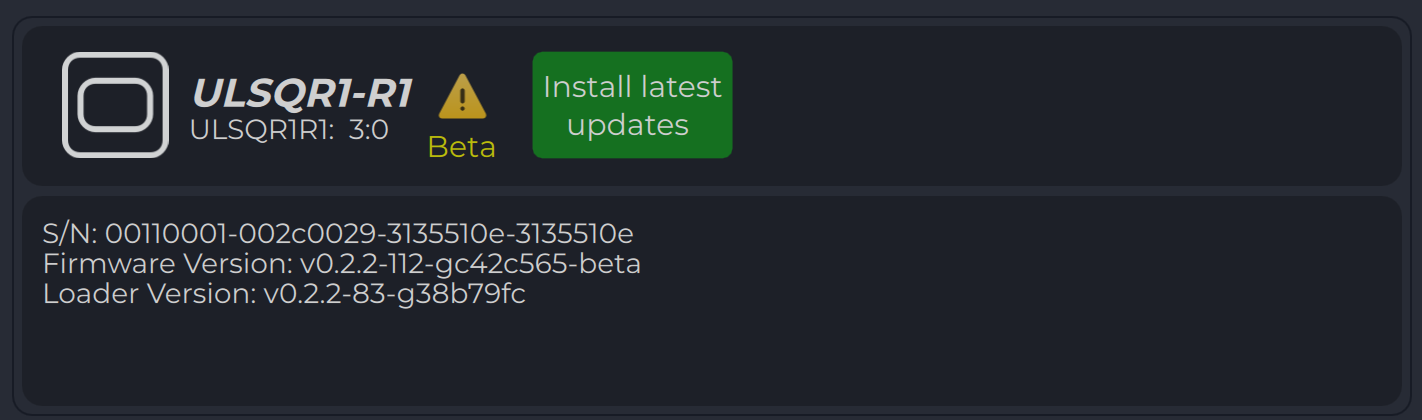
"Beta" version is visible only if "Load all releases" pressed and marked with "Yellow" icon and border.
After loading, use "Install for all devices" to update firmware.
Progress of updating process are displayed on Device View Page.
---
Warning
***DO NOT DISCONNECT ANY DEVICES OR CLOSE PROGRAM UNTIL UPDATE PROCESS COMPLIED!***.
All devices flashed with beta version are marked with corresponding "Yellow" logo on "Device view" page
---